Blog

SR Technologies Voted Best Security System Provider in the 2025 Press Democrat Readers’ Choice Awards

We’re excited to share that SR Technologies was voted Best Security System Provider in this year’s Press Democrat Readers’ Choice Awards! It means a lot to be recognized by the community we live and work in, and we’re incredibly grateful to everyone who took the time to vote for us.

Thank you for your trust and continued support.

Real Security for the Real World

At SR Technologies, we take a practical approach to security. While we’re a full-service Managed IT provider, this award specifically highlights the work we do around cybersecurity, physical surveillance systems, access control, and security automation.

We’ve found that digital and physical security go hand-in-hand. Our clients don’t want five different vendors or disconnected systems. They want one team who understands the full picture and can deliver solutions that actually work together.

We help clients across a wide range of industries, including:

  • Manufacturing, where safety, uptime, and facility monitoring are critical
  • Tribal Governments, where compliance, privacy, and sovereignty matter
  • Distribution, where warehouses and transportation need solid coverage
  • Cannabis Retail, where regulations are strict and security must be airtight

Whether it’s protecting data from cyber threats or helping a retail business manage access to sensitive areas, our job is to make things secure without making them complicated.

It’s All About the Team

This win wouldn’t be possible without the people behind the scenes. Our technicians, engineers, and project managers take real pride in their work. They show up early, stay late when needed, and care about doing things right the first time.

We’re not a call center. We’re not a giant faceless corporation. We’re a local company, and we treat our clients like neighbors, because they are.

Looking Ahead

We’re always evolving. In 2025, we’re adding more advanced tools to our lineup, including AI-based surveillance systems, enhanced threat monitoring, and more ways to help multi-site clients manage security from one dashboard.

As always, we’ll continue to build custom solutions based on what you need, not just what’s easy for us to sell. That’s what sets us apart.

Thank You

To our clients, our partners, and the folks who voted for us, thank you. This award is a reminder that the work we’re doing matters. We’re proud to be a trusted security provider here in Sonoma County, and we look forward to keeping you protected for years to come.

If you’d like to learn more or talk through your own security needs, we’re just a phone call away.

Windows 10 Is Retiring: What That Means for You and What to Do Next

If you’ve been comfortably using Windows 10 for a while, you’re not alone. It’s been a solid, reliable operating system—one that many people and businesses still depend on daily. But like all good things, it’s coming to an end.

What’s Happening with Windows 10?

Microsoft has officially announced that Windows 10 will reach its end of life on October 14, 2025. That might sound far away, but in tech years, it’s right around the corner.

End of life doesn’t mean your computer will stop working the next day—but it does mean that Microsoft will stop releasing security updates, bug fixes, and support. That’s where things get risky. Without those updates, your system becomes increasingly vulnerable to viruses, malware, and hackers. Think of it like driving a car that no longer qualifies for insurance—it might still run, but you’re taking a big gamble.

Why Upgrade to Windows 11 Now?

Windows 11 isn’t just a shiny new interface (though it is a bit sleeker). It’s designed to be faster, more secure, and better suited for today’s hybrid work environments.

Some reasons to upgrade:

• Improved security: Windows 11 was built with modern threats in mind. Features like hardware-based isolation and enhanced encryption are baked right in.

• Better performance: It runs smoother on newer hardware and is more efficient overall.

• Longer support life: Windows 11 will be supported well into the 2030s, which means fewer disruptions down the road.

• Compatibility with new software: Many modern apps and tools are being optimized for Windows 11 first.

But Can My Computer Run Windows 11?

Here’s the catch: Not all Windows 10 PCs are eligible to upgrade. Windows 11 has stricter hardware requirements, especially around things like the processor, TPM 2.0, and memory. Many older machines simply don’t make the cut.

If your computer isn’t compatible, you’ll need to consider replacing it. And if you are eligible, it’s still important to plan ahead so the upgrade doesn’t interrupt your workflow.

What Should You Do Now?

1. Check compatibility: You can use Microsoft’s PC Health Check Tool or give us a call—we’ll help you figure it out quickly.

2. Plan your timeline: Don’t wait until the last minute. Planning your upgrades now ensures you won’t be scrambling later.

3. Back up your data: Whether you’re upgrading or replacing, make sure your files are backed up safely.

4. Think about your network: Businesses especially should consider how many machines need replacing or upgrading, and whether it’s time to standardize systems across the company.

How SR Technologies Can Help

At SR Technologies, we’ve helped countless individuals and businesses navigate these transitions smoothly. Whether you need a full upgrade plan for your office or just want to replace your personal computer with something Windows 11-ready, we can help you every step of the way.

• We’ll assess your current systems and tell you exactly what needs to be replaced or upgraded.

• We can source new hardware, transfer your data, and ensure everything is set up properly.

• For businesses, we’ll build a transition roadmap so your team stays productive throughout the change.

• And most importantly, we’ll make sure you’re secure, up-to-date, and not left behind.

Bottom Line: Windows 10 had a good run, but the future is Windows 11. Whether it’s one computer or a fleet, it’s time to start thinking about what comes next—and we’re here to make that next step simple.

Need help figuring out your next move?

Give us a call or send us an inquiry here on the site; we’re local, we’re friendly, and we speak human, not just tech.

Migrating from QuickBooks Desktop to QuickBooks Online

A Step-by-Step Guide and Why SR Technologies Is Your Best Partner

For businesses currently using QuickBooks Desktop (QBD), migrating to QuickBooks Online (QBO) can offer a wealth of benefits, including real-time data access, easier collaboration, automatic updates, and seamless integrations with other online tools. However, the transition from QBD to QBO requires careful planning and expertise to avoid data loss, configuration errors, or disruptions to daily business operations. This guide outlines the steps for a successful migration and explains why SR Technologies is the ideal partner for this critical process.

Why Migrate to QuickBooks Online?

Before diving into the steps of migration, it’s important to understand the benefits of QBO over QBD:

  1. Accessibility: QBO is cloud-based, allowing you to access your financial data anytime, anywhere, on any device with an internet connection.
  2. Automation: Enjoy automated backups, updates, and features such as bank feeds that simplify daily bookkeeping.
  3. Collaboration: Multiple users can work on QBO simultaneously, making it easier for accountants, business owners, and staff to collaborate in real-time.
  4. Integrations: QBO integrates with a vast array of apps, making it easier to manage inventory, CRM, payroll, and more.
  5. No Infrastructure Maintenance: Unlike QBD, QBO doesn’t require server maintenance, updates, or hardware upgrades, saving time and costs.

Steps for Migrating from QuickBooks Desktop to QuickBooks Online

1. Assess Your Current Setup

Before starting the migration, it’s important to assess whether your QBD data is ready for migration. Factors like file size, version compatibility, and data complexity (inventory tracking, multi-currency usage, etc.) must be considered. Some complex features in QBD might not directly transfer to QBO, so planning is crucial.

SR Technologies Insight: At SR Technologies, we begin with a thorough analysis of your current QBD environment to identify any complexities, customizations, or data that may need special attention during the migration process.

2. Backup Your QuickBooks Desktop Data

Before any migration, always create a backup of your QBD company file. This ensures that you have a safety net in case of any issues during the migration process.

SR Technologies Advantage: We take care of this crucial step by performing a secure backup of your data, ensuring that nothing is lost during the migration.

3. Set Up QuickBooks Online

If you haven’t already, you’ll need to create a QuickBooks Online account. During this process, you’ll select the plan that best suits your business’s needs. The right plan will depend on factors like the number of users, the level of reporting, and the types of integrations your business will need.

SR Technologies Expertise: We guide you through choosing the most appropriate QBO plan based on your unique business needs, ensuring you’re not overpaying for features you don’t require.

4. Migrate Your Data

Once the QBO account is ready, you can begin the data migration process. QuickBooks offers a built-in tool to help with the migration, but it’s not always foolproof. Key steps include:

  • Exporting data from QBD
  • Importing that data into QBO
  • Ensuring all account balances, transactions, and lists (customers, vendors, employees) transfer correctly

Certain data, such as inventory, audit trails, or recurring transactions, may not transfer smoothly and might require manual adjustment.

SR Technologies Attention to Detail: Our team ensures all financial data is accurately migrated, including custom reports, vendor information, customer lists, and more. We resolve any discrepancies or missing data, ensuring that the transition is smooth and error-free.

5. Verify the Data and Customize Settings

After the migration is complete, it’s critical to check that all data was transferred correctly. This includes verifying:

  • Account balances
  • Open invoices and bills
  • Reports for accuracy
  • Sales tax configurations
  • Bank and credit card reconciliation balances

SR Technologies Assurance: We go through a comprehensive post-migration checklist, validating every aspect of your financial setup to ensure that nothing was overlooked. Our experts also help customize your QBO settings to match your business processes.

6. Train Your Team on QuickBooks Online

QBO has a different interface and set of features compared to QBD. Training your team on how to use QBO effectively is a vital step to ensure the software is used to its fullest potential.

SR Technologies Training: Our migration service includes hands-on training sessions for your team, ensuring that everyone is comfortable with the new system. We tailor the training to your specific needs, focusing on the features that matter most to your business.

7. Ongoing Support

Even after migration, there may be minor adjustments or questions as you adapt to QBO. It’s important to have access to ongoing support to resolve any issues quickly and efficiently.

SR Technologies Support: We provide continuous support to ensure that your team has access to experts who can troubleshoot any post-migration issues and assist with optimization.

Why SR Technologies Is the Perfect Migration Partner

Migrating from QuickBooks Desktop to QuickBooks Online is not just a technical process; it’s a strategic move that can improve your business operations. SR Technologies is a trusted partner in this journey for several reasons:

  • Expertise in Complex Migrations: We’ve successfully migrated many clients from QBD to QBO, especially those with unique or complicated data structures.
  • Tailored Solutions: We don’t take a one-size-fits-all approach. We analyze your specific requirements and create a migration plan that suits your business.
  • End-to-End Service: From planning and backup to data verification and post-migration support, SR Technologies handles every aspect of the migration.
  • Minimizing Downtime: We understand that any disruption in your financial system can have serious repercussions. Our process minimizes downtime, ensuring your business continues to run smoothly throughout the transition.
  • Ongoing Partnership: SR Technologies doesn’t just leave you after the migration is complete. We offer ongoing support to ensure that your team can fully leverage the power of QBO for your business’s future growth.

Conclusion

Migrating from QuickBooks Desktop to QuickBooks Online can transform the way your business manages its finances. However, to ensure a smooth and successful transition, it’s important to have an experienced partner by your side. SR Technologies offers the expertise, detailed planning, and hands-on support necessary to make your migration seamless. With us, you can focus on running your business, confident that your financial data is in good hands.

Reach out to SR Technologies today to start your QuickBooks Online migration journey and experience a streamlined, cloud-based future for your financial management.

Speak With A QuickBooks Expert!

Spotlight on Our SR Technologies Billboard in Rohnert Park!

Spotlight on Our SR Technologies Billboard in Rohnert Park!

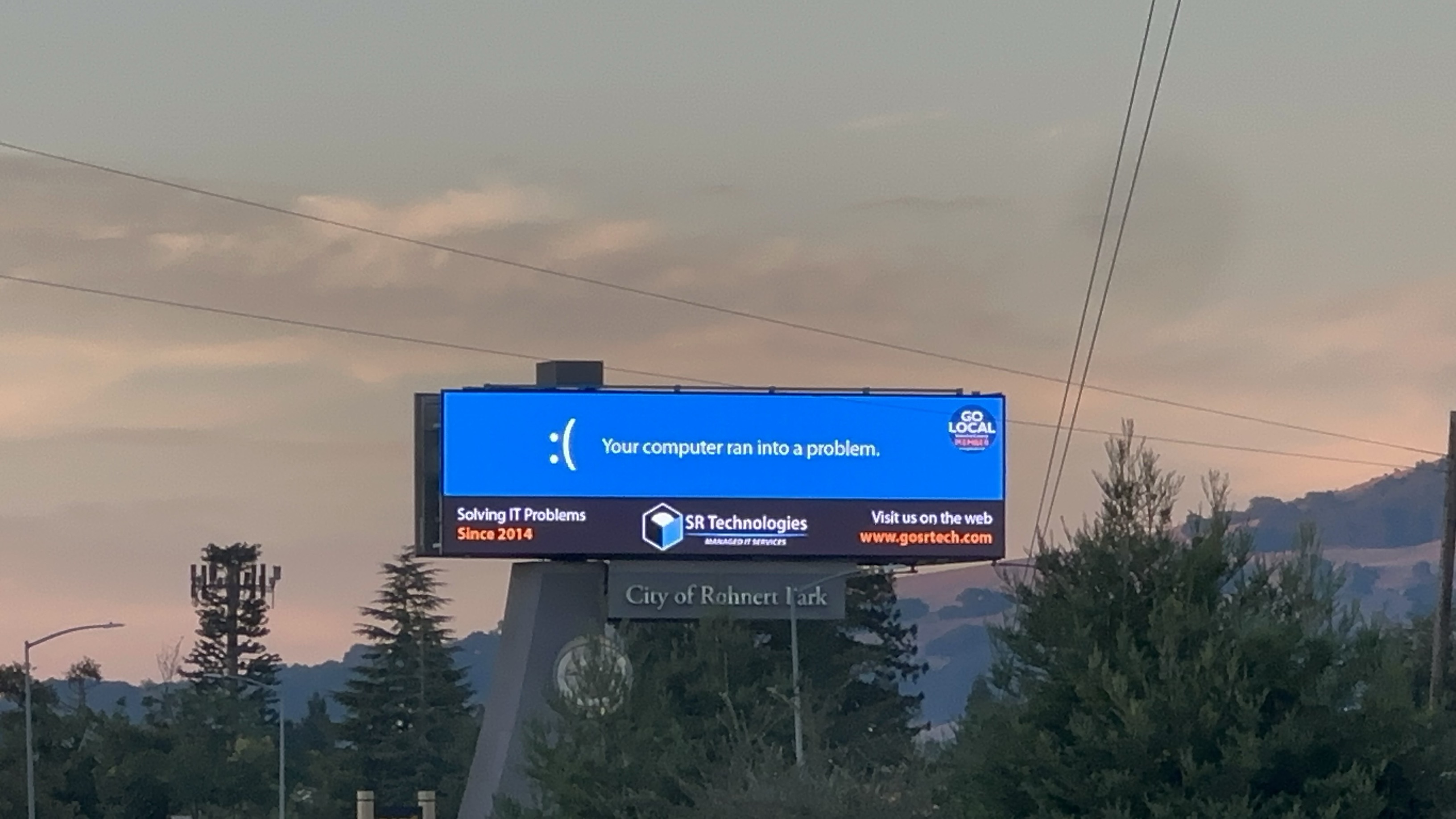
We are excited to share some great news—SR Technologies is making waves in Rohnert Park, CA with our new billboard ad, and we owe it all to the fantastic folks over at GoLocal!

A Big “Thank You” to GoLocal

GoLocal has always been an advocate for helping local businesses gain exposure and thrive in the community, and they did just that by connecting us with an advertiser who provided us a budget-friendly rate on a prime billboard spot. Their dedication to boosting local businesses like ours is why we’re honored to partner with them. It’s not just about putting our name out there; it’s about joining forces with other local businesses and sharing in the spirit of growth and community.

A Billboard With a Bold Message

You can spot our SR Technologies billboard along the bustling streets of Rohnert Park, and trust us—you won’t miss it. The ad features a “Blue Screen of Death”—a scene familiar to anyone who has ever faced a critical computer error. But fear not! The message that follows proudly declares:

“Solving IT problems Since 2014.”

Making a Statement, Sparking a Smile

Why go with a “Blue Screen of Death,” you ask? Well, because sometimes even the worst computer error can bring out a smile when you know who to call to fix it. We wanted to remind passersby that at SR Technologies, we handle IT challenges of all sizes. From server hiccups to computer crashes, we’re here to help, as we have been for the last 10 years.

Our ad isn’t just about promoting our business—it’s about sending a clear message that IT issues happen, but there’s always a solution. Whether it’s a simple reboot or a complete system overhaul, we take pride in offering comprehensive IT support to businesses in the North Bay Area. And what better way to say it than with a billboard that brings some humor to an otherwise stressful situation?

Gratitude for the Community Exposure

While we’re excited to see our name in lights (or at least big, bold print!), the real honor lies in being part of this wonderful community and contributing to its growth. Getting our brand up on a billboard in Rohnert Park is a huge milestone for us, and we’re grateful to GoLocal for helping us make it happen. This exposure helps us connect with more local businesses, serve more clients, and strengthen our presence as the go-to IT experts in the region.

IT Problems? We’re Here to Help!

If you happen to be in the area, keep an eye out for our billboard and remember—next time your computer gives you a Blue Screen of Death, you know who to call. We’ve been fixing IT problems since 2014, and we’re not slowing down anytime soon.

Thanks again to GoLocal for making this possible and to our fantastic clients and community members for their continued support.

See you out on the road!

Leveraging Azure Cloud Services for Small Businesses: Hosting Virtual Servers & Serverless Security

In today’s competitive landscape, small businesses are increasingly turning to cloud services to achieve greater flexibility, scalability, and cost savings. Microsoft Azure stands out as a comprehensive cloud platform offering a range of services that even small businesses can benefit from. By harnessing Azure Virtual Servers and Entra’s Serverless User Security features, small businesses can leverage powerful tools previously reserved for larger enterprises.

The Power of Azure for Small Businesses

Cloud technology has leveled the playing field, allowing businesses of all sizes to access enterprise-grade technology without the need for massive infrastructure investments. Azure provides a wide array of services designed to support the needs of small and growing businesses:

  • Cost-Effective Scaling: Azure offers a pay-as-you-go model, meaning businesses only pay for the resources they use.
  • Flexibility & Customization: Azure allows for easy customization, enabling businesses to deploy services that meet their exact requirements.
  • Reliability & Security: With high-availability zones, built-in compliance, and security features, Azure ensures that business data is safe, secure, and always accessible.

One of the most powerful ways for small businesses to take advantage of Azure is by leveraging virtual server environments and serverless security features through Entra.

Azure Virtual Servers: A Scalable, Cost-Efficient Solution

For many small businesses, managing on-premises servers can be costly, cumbersome, and time-consuming. Traditional servers often require physical space, hardware maintenance, upgrades, and can be challenging to scale. This is where Azure Virtual Machines (VMs) come into play.

What Are Azure Virtual Machines?

Azure VMs are virtualized server environments that allow businesses to deploy, host, and manage applications without the need for physical servers. These VMs can be easily configured to match the exact needs of the business, whether it’s hosting an application, storing data, or running a specific workload.

Benefits for Small Businesses

  1. Scalability On-Demand: Businesses can quickly scale their server resources up or down based on their needs. This allows for efficient handling of peak times without having to pay for excess capacity year-round.
  2. Cost Savings: No need to purchase or maintain expensive hardware. Azure VMs operate on a pay-as-you-go pricing model, so you only pay for what you use. Additionally, businesses can schedule VMs to power off during non-business hours to save on costs.
  3. Reduced Downtime & High Availability: With Azure’s geographically distributed data centers, businesses can ensure their services are available 24/7. Azure also provides automated backup and recovery services to mitigate risks of data loss or outages.
  4. Quick Deployment & Easy Management: Azure allows for quick setup and configuration of VMs, making it easy for small businesses to deploy servers for new applications or scale resources rapidly as the business grows.

Use Cases for Azure Virtual Servers

  • Application Hosting: Host custom business applications that require dedicated server resources.
  • Development & Testing Environments: Create isolated development and testing environments without affecting live production systems.
  • Remote Access to Data & Applications: Provide employees with remote access to company applications or data from anywhere, enhancing flexibility and productivity.

Enhancing Security with Azure Entra

Security is a top concern for all businesses, regardless of size. Microsoft Azure Entra, previously known as Azure Active Directory (Azure AD), is a cloud-based identity and access management solution. Entra provides small businesses with serverless security features that streamline user authentication and authorization without the need to maintain complex infrastructure.

Key Features of Azure Entra for Small Businesses

  1. Single Sign-On (SSO): Entra enables SSO across all business applications, allowing users to authenticate once and access all approved apps and services securely. This reduces password fatigue and enhances security by enforcing consistent policies.
  2. Multi-Factor Authentication (MFA): Entra provides a layered security approach by adding an extra layer of authentication for users accessing sensitive data. This can include biometric factors, one-time codes, or hardware tokens, all of which significantly reduce the risk of unauthorized access.
  3. Conditional Access Policies: With Conditional Access, businesses can create policies that determine how and when users are granted access to resources. This can include restricting access based on location, device type, or risk level, ensuring only authorized and compliant devices and users gain access.
  4. Serverless Identity Services: Entra’s serverless nature means small businesses don’t have to worry about setting up and maintaining their own identity servers. All authentication and authorization happen in the cloud, reducing the overhead associated with maintaining identity systems.

Use Cases for Entra

  • Secure Remote Access: Allow employees to securely access business apps and data from any location, reducing the risk associated with remote work.
  • Streamlined Onboarding & Offboarding: With Azure Entra, onboarding new users is simplified with automatic provisioning to necessary applications. Similarly, when employees leave, access can be instantly revoked, minimizing security risks.
  • Access to Third-Party Applications: Many small businesses use third-party SaaS applications like Salesforce, Google Workspace, and Dropbox. Entra provides integration capabilities to offer SSO and seamless access to these services while ensuring a consistent security policy.

Leveraging Azure’s Serverless Security Model

Small businesses looking to offload the complexities of server management and security should strongly consider Azure’s serverless security features. With Azure Functions and Entra, businesses can build serverless applications that respond to events (such as new data being entered or a user logging in) without worrying about managing servers. This means that businesses only pay for the execution time of these functions, further driving cost savings.

Azure’s serverless offerings extend to identity security through Entra, enabling small businesses to set up secure user authentication and access controls without building and managing server-based authentication systems.

Benefits of Serverless Security

  1. No Server Management: Businesses do not need to worry about maintaining or updating servers to manage user security.
  2. Automated Scaling: Security services automatically scale based on user activity, providing a seamless experience without the need for manual scaling efforts.
  3. Cost-Efficiency: Since billing is based on the execution and consumption of services, businesses only pay for what they use.

Getting Started with Azure

For small businesses ready to make the move, the transition to Azure can be simple and straightforward. Start by evaluating your existing infrastructure and determining which services could benefit from moving to Azure. Workloads like email, file storage, applications, and identity management are great starting points. With the help of an IT partner or Managed Service Provider (MSP), businesses can quickly migrate and deploy their operations in Azure, maximizing efficiency and minimizing downtime.

Conclusion

The cloud is no longer just for large corporations with extensive budgets. Azure’s flexible, scalable, and secure solutions make it an ideal choice for small businesses looking to grow and maintain an edge in today’s market. By leveraging Azure Virtual Servers and Entra’s Serverless Security Features, small businesses can build a solid, scalable IT foundation that not only supports current operations but is also poised to grow alongside the business.

With the right strategy, Azure can help small businesses stay agile, secure, and ahead of the curve in an ever-changing digital landscape.

Case Study: Distribution Company Startup

Client Background A distribution company, starting as a small-scale operation, sought to expand quickly and compete in a fast-growing market. With aspirations of scaling to a $400M/year enterprise, the company recognized the critical role technology would play in their growth and operational efficiency. However, at the time of inception, they had no existing IT infrastructure, policies, or processes to support this growth.

Challenge The client faced numerous challenges that needed to be addressed in order to build a scalable, secure, and compliant IT environment:

  • Building IT Infrastructure from Scratch: With no existing infrastructure, they required everything from standardized hardware to network solutions.
  • Security and Compliance Needs: They needed to implement policies and processes for IT security, achieve SOC2 compliance, and maintain industry-specific regulations.
  • Operational Streamlining: Onboarding and offboarding processes needed to be standardized for efficient employee lifecycle management.
  • Scalability and Redundancy: The company sought to deploy secure and redundant networking to support multiple facilities and allow for seamless scaling as the business grew.
  • Technology Management and Cloud Integration: The client required a unified authentication management system and comprehensive cloud services for collaboration, communication, and workflow automation.
  • Monitoring and Control: Fleet tracking, surveillance, access control, and incident alert systems were needed to optimize operations and security.

Solution The company partnered with SR Technologies as their Managed Service Provider (MSP) from their inception, and together they developed a strategic roadmap to tackle each challenge as they grew from a startup to a $400M/year business.

1. IT Infrastructure Development

SR Technologies took a structured approach to build out the foundational infrastructure:

  • Standardized Equipment: Implemented standardized hardware across all locations, including workstations, network equipment, and servers. A robust network backbone was built, starting with Ethernet and fiber connections to ensure high-speed connectivity throughout the organization.
  • Network Redundancy: Designed and implemented a redundant building network to ensure continuous operations. Failover capabilities were built into the network to maintain uptime even during outages or hardware failures.
  • Unified Communication Systems: Deployed a comprehensive Microsoft 365 solution, providing the company with a centralized platform for email, file sharing, collaboration, and communication.

2. Onboarding and Offboarding Automation

  • SR Technologies developed automated workflows for onboarding new employees, including the provisioning of devices, access to necessary applications, and training on company policies.
  • For offboarding, SR Technologies implemented strict access termination protocols and device retrieval processes to maintain security and compliance.

3. Security Policies and Compliance

  • IT Security Policy: Created and enforced a comprehensive IT security policy to guide secure behavior and technology use across the company.
  • SOC2 Compliance & Industry Auditing: To meet the company’s compliance needs, SR Technologies helped them achieve SOC2 certification and continuously maintain compliance through ongoing audits, monitoring, and policy updates.
  • Industry-Specific Compliance: Ensured adherence to any additional regulations pertinent to the distribution industry, such as data privacy standards and supply chain security protocols.

4. Authentication and Identity Management

  • Azure Active Directory was deployed to centralize user authentication, enabling secure Single Sign-On (SSO) to all corporate resources. This streamlined user access to internal systems and maintained consistent security practices.
  • Multi-Factor Authentication (MFA) was enforced for all users to enhance account security and reduce the risk of breaches.

5. Cloud Integration and Data Management

  • SR Technologies led the client’s Azure Cloud deployment, migrating key applications and data to the cloud, ensuring scalability, flexibility, and secure remote access.
  • Data backup and disaster recovery solutions were integrated with Azure, allowing the business to quickly recover from any data loss or incident without interrupting day-to-day operations.

6. Building Surveillance and Access Control

  • Surveillance System: Implemented a modern building surveillance system, covering all access points and key areas within the company’s facilities.
  • Access Control System: Installed a secure access control system, providing automated entry for employees and restricting access to sensitive areas.
  • Both systems were integrated with the IT network, allowing centralized monitoring and instant response to any alerts or incidents.

7. Fleet Vehicle Tracking and Incident Alerts

  • Fleet Tracking: SR Technologies deployed a GPS-based fleet tracking system to monitor vehicle locations, optimize delivery routes, and improve the overall efficiency of the distribution process.
  • Incident Alert Systems: Developed an incident alert system to provide real-time alerts for security breaches, system failures, or other emergencies. This ensured rapid response times and reduced potential disruptions to operations.

Results & Impact The client experienced a seamless evolution from a small startup to a high-revenue distribution powerhouse:

  • Operational Efficiency: Streamlined processes for onboarding/offboarding, equipment provisioning, and network management improved day-to-day efficiency and reduced downtime.
  • Compliance and Security: Successfully achieved SOC2 compliance, positioning the company to gain customer trust and adhere to industry standards.
  • Scalable Infrastructure: With SR Technologies’ standardized IT approach, the company could easily scale technology operations up or down in line with business growth.
  • Centralized Management: Cloud-based solutions with Microsoft 365 and Azure allowed for centralized IT management and collaboration, reducing manual intervention and improving team communication.
  • Improved Security and Control: Surveillance, access control, and incident alert systems provided robust security, while fleet tracking ensured the smooth operation of distribution activities.
  • Financial Growth: Technology enhancements and operational efficiencies contributed to the company’s growth, ultimately helping the business scale to $400M/year in revenue.

Executive Leadership & Continuous Improvement Throughout the journey, SR Technologies worked closely with the client’s executive team to align IT strategy with business goals, ensuring that technology was a growth enabler rather than a hindrance. Regular reviews and audits ensured that the client stayed ahead of technological advancements and industry regulations.

Conclusion By acting as a true partner and integrating deeply into the client’s operations, SR Technologies transformed the company’s technology landscape. The proactive and strategic approach enabled the client to scale efficiently and securely, providing a strong foundation for continued growth and success in the distribution industry.

Business finance and investment, Analyze economic growth charts for informed business finance decisions and financial decision-making. Stock Market report, Strategy, Data Collection, Forecasting
How to Troubleshoot QuickBooks Error H202 and Other Common Client/Server Errors

When using QuickBooks in a multi-user setup, errors can sometimes arise due to issues with the server or client machine configurations. One of the most common errors is H202, which occurs when QuickBooks cannot connect to the company file located on the server. Here’s how to troubleshoot H202 and other common QuickBooks errors in a client/server environment.

QuickBooks Error H202

What Causes Error H202?
Error H202 typically occurs when a workstation (client) is unable to access the company file stored on the server. This can happen for several reasons:

  • Network connectivity issues.
  • Incorrect hosting configuration.
  • Blocked ports or firewall settings.
  • Miscommunication between the client and server.

Steps to Fix Error H202

  1. Check Hosting Settings on the Server
  • On the server, open QuickBooks Desktop.
  • Go to File > Utilities.
  • Make sure Host Multi-User Access is selected. If you see Stop Hosting Multi-User Access, it means hosting is already enabled.
  1. Ping the Server from the Workstations
  • On the client machine, press Windows + R, type cmd, and hit Enter.
  • Type ping [your server’s name] (replace [your server’s name] with the actual server name) and press Enter.
  • If there’s no reply or the connection times out, the workstation may not be able to communicate with the server. Check your network setup.
  1. Check the QuickBooks Database Server Manager
  • Open QuickBooks Database Server Manager on the server (found in the Start menu).
  • Click Scan Folders and add the folder where your company file is stored.
  • Click Scan, then restart QuickBooks on the server and client machines.
  1. Open Necessary Ports in the Firewall
    QuickBooks uses specific ports to communicate over the network. Ensure your firewall is configured to allow them.
  • Open the firewall settings on both the server and workstations.
  • Allow the following TCP ports: 8019, 56728, 55378-55382.
  • Restart QuickBooks after making these changes.
  1. Check QuickBooks Services
  • On the server, press Windows + R, type services.msc, and press Enter.
  • Ensure QuickBooksDBXX (where XX is the version year) and QBCFMonitorService are running and set to automatic.

Other Common Client/Server QuickBooks Errors

Error H505: “QuickBooks Unable to Switch to Multi-User Mode”

Cause: Similar to H202, H505 occurs when a workstation cannot communicate with the server to access the company file in multi-user mode.

  • Follow the same troubleshooting steps as for H202 (check hosting, firewall, services, and pinging).

Error 6000, 77: “Cannot Access Company File”

Cause: This error can happen if the company file is located in a folder with incorrect permissions or if there’s a network issue.

  • Move the company file to a different folder on the server with full access permissions.
  • Check that both the server and client machines have proper permissions to access the folder.

Error 6177: “QuickBooks is Unable to Use the Path to Open the Company File”

Cause: This error occurs if QuickBooks is trying to open a company file stored on a different machine but can’t access the path correctly.

  • Move the company file to a local drive on the server, then open it directly.
  • Alternatively, use the QuickBooks File Doctor tool to fix path issues.

General QuickBooks Client/Server Troubleshooting Tips

  1. Restart QuickBooks Database Server Manager
    Sometimes a quick restart of the QuickBooks Database Server Manager can resolve communication issues between the client and server.
  2. Use QuickBooks File Doctor
    QuickBooks provides a built-in tool called File Doctor that can diagnose and repair various network and file access issues. Run this tool to automatically fix network problems.
  3. Ensure Network Drive Mappings Are Correct
    Make sure that the client machines have properly mapped network drives to access the server where the company file is located. Incorrect drive mappings can lead to errors when trying to open QuickBooks files.
  4. Verify QuickBooks Version Compatibility
    Ensure that all workstations and the server are running the same version and year of QuickBooks Desktop to prevent version mismatch errors.

By following these troubleshooting steps, you can resolve QuickBooks multi-user mode errors like H202, H505, and other common network-related issues. If problems persist, it may be worth contacting QuickBooks support for further assistance.

Document management concept, check electronic documents on digital documents on virtual screen Document Management System and process automation to efficiently document paperless operate
Open Windows Firewall Ports for QuickBooks Desktop Pro and Enterprise

Below are the correct port numbers for QuickBooks Pro and QuickBooks Enterprise versions 2021, 2022, 2023, and 2024. These are the TCP ports that should be opened for both Pro and Enterprise versions for proper multi-user and server-client communication.

QuickBooks Desktop (Pro & Enterprise) Port Numbers:

QuickBooks VersionPort Number QuickBooks Desktop 2021 8019, 55363-55367 QuickBooks Desktop 2022 8019, 55368-55372 QuickBooks Desktop 2023 8019, 55373-55377 QuickBooks Desktop 2024 8019, 55378-55382

How to Open Ports in the Firewall:

  1. Open the Windows Firewall settings on both the server and client machines.
  2. Click on Advanced Settings.
  3. Under Inbound Rules, click New Rule.
  4. Select Port, then click Next.
  5. Select TCP and enter the port numbers from the table above.
  6. Allow the connection, then follow the prompts to complete the rule setup.
  7. Repeat the process for Outbound Rules to ensure proper communication.

Final Tips:

  • Ensure that QuickBooks Database Server Manager is scanning the correct folders.
  • Make sure all workstations and the server have proper firewall and network configurations to allow these ports.

By opening these specific ports, you can help prevent issues like H202 or other network-related errors when using QuickBooks in a multi-user environment.

How to Update QuickBooks Desktop on a Server and Client Machines

Updating QuickBooks Desktop across a network involves updating both the server (where the company files are stored) and the client machines (where users access QuickBooks). Here’s a step-by-step guide to ensure a smooth update process.

Step 1: Update QuickBooks on the Server

  1. Log in as Admin on the Server
    Make sure you are logged into the server as the administrator. This ensures you have the necessary permissions to update the software.
  2. Open QuickBooks and Check for Updates
  • Open QuickBooks Desktop on the server.
  • Click on Help in the top menu.
  • Select Update QuickBooks Desktop.
  • In the Update QuickBooks window, go to the Update Now tab.
  • Check the box next to Reset Update to remove previously downloaded updates, then click Get Updates.
  1. Install the Update
  • Once the update downloads, restart QuickBooks.
  • You’ll be prompted to install the update. Click Yes to proceed.
  • After the installation is complete, restart the server.
  1. Verify Update on the Server
  • Open QuickBooks and press F2 or Ctrl + 1 to open the Product Information window. Check that the latest release version is displayed.

Step 2: Update QuickBooks on Client Machines

  1. Log in as Admin on the Client Machines
    Ensure you’re logged into each client machine as an administrator for proper installation rights.
  2. Open QuickBooks and Check for Updates
    Repeat the same process as on the server:
  • Open QuickBooks on the client machine.
  • Click Help > Update QuickBooks Desktop > Update Now.
  • Click Get Updates to download and install the latest version.
  1. Install the Update
  • After the update downloads, close and reopen QuickBooks on the client machine.
  • Follow the prompts to install the update, then restart QuickBooks.

Step 3: Ensure All Machines Are on the Same Version

To avoid file access issues, ensure all machines (server and clients) are running the same QuickBooks version and release. You can verify this by pressing F2 or Ctrl + 1 on each machine to check the version number.

Step 4: Test Access to the Company File

After all updates are installed:

  • Open QuickBooks on the client machines.
  • Access the company file stored on the server to confirm everything is working properly.

By following these steps, you’ll ensure that both the server and client machines are updated and compatible with the latest QuickBooks Desktop release.

How to Clear Browser History in Google Chrome Without Deleting Saved Passwords

If you want to clear your browsing history but keep your saved passwords in Google Chrome, it’s an easy process! Follow these simple steps to clean up your history while preserving your login information:

Step 1: Open Chrome Settings

  • Click the three-dot menu in the top-right corner of Chrome.
  • Select Settings from the dropdown menu.

Step 2: Access the Clear Browsing Data Tool

  • Scroll down to Privacy and Security.
  • Click on Clear browsing data.

Step 3: Choose What to Clear

In the pop-up window:

  • Under the Basic tab, check the box for Browsing history.
  • Uncheck the boxes for Cookies and other site data and Cached images and files if you don’t want to clear those.
  • Leave Passwords and other sign-in data unchecked to keep your saved passwords.

Step 4: Set the Time Range

At the top of the pop-up window, choose how far back you want to clear data:

  • Options include “Last hour,” “Last 24 hours,” “Last 7 days,” “Last 4 weeks,” or All time.

Step 5: Clear Data

  • Once you’ve selected the data to clear and the time range, click Clear data.

And that’s it! Your browsing history will be cleared, but all your saved passwords will remain intact, so you won’t have to log in again to your favorite sites.

Skip to content